It's Friday, time to process the week's work reports, and every technician has filled in the work report template in Word their own way: one puts the job code, another the customer's name and another leaves the box blank. A Word template is worth using if it includes the fields your office needs later and leaves little room for people to invent their own formats. Below you'll find which fields to include, how to build it in Word step by step, the mistakes to avoid and what the same report looks like when it is submitted from a mobile phone.
Which fields a work report template in Word should include
Before opening Word, think about who is going to use each piece of data. The foreman needs to know what was done; administration needs each worker's hours by type; and management needs to know which job to charge each hour and each material to, so as to see the real cost. If nobody in your office uses a field, leave it out. If someone needs it and it isn't on the report, you'll have to ask the technician by phone on Monday.
| Field | What the office uses it for |
|---|---|
| Date | One report per day and worker; without a date nothing can be reconciled |
| Worker and professional category | Valuing each hour according to category (skilled worker, labourer, foreman…) |
| Job code | Allocating hours to the right job, with no doubt between two jobs for the same customer |
| Activity, chapter or item | Knowing where the hours went and comparing them with what was quoted |
| Hours by type | Normal, overtime, public holiday, night-time, leave and union hours, each in its own box |
| Start and end of the working day and breaks | Keeping the working time record if the report also serves that purpose |
| Travel, allowances and mileage | Paying them to the worker and charging them to the job that generated them |
| Materials used | Description and quantity, so they don't stay in the warehouse unallocated |
| Remarks | Incidents, outstanding work, anything extra the customer asked for |
| Signatures | The worker's and the foreman's and, if needed, the customer's |
Of all these, the job code is what decides whether the report is any use for working out costs. If you don't yet have a fixed way of numbering your orders, start there: how to code your jobs to know what each one earns explains a code by year, customer and activity that fits this report.
How to build the template in Word step by step
What you need to have to hand
- The list of open jobs with their codes.
- The professional categories of your staff.
- The activities or items into which you divide your quotes.
- The items you pay separately: allowances, half allowances, mileage.
- Your logo and company details.
Building the document
- Open a blank document and set narrow margins: the report has to fit on a single sheet so that it isn't stapled to another and lost.
- In the header, place the logo, the company name, the title “Work report” and a space for the report number.
- Insert a two-column table for the general details: date, worker, category, job code, customer and foreman.
- Below it, add a table for the hours: one row per activity or item and one column for each type of hour. Leave a totals row at the end.
- Add another table for the working day: start time, end time and breaks.
- Another for travel: origin, destination, kilometres and whether there was an allowance or half allowance.
- The materials table: description, quantity and unit.
- Finish with a remarks box and the signature boxes.
Locking the fields so everyone fills them in the same way
This step is what separates a useful template from a sheet of lined paper. Enable Word's Developer tab (in the options for customising the ribbon) and use its content controls: a date picker for the date, drop-down lists for the category and the activity, and text boxes for the rest.
Then, under Review, use Restrict Editing and allow form filling only. That way your technicians can't move columns or delete the overtime box. Save it with “Save As” in Word Template format: each time someone opens it, Word creates a new report and the template stays intact. If your technicians carry it printed, export a PDF version and have everyone print the same one.
If you are looking for a ready-made template to start from, the guide to the work report template explains the fields, and work report models for an industrial contractor shows how to fill it in by crew.
How to fill in the report so it's useful to the office
Your template fails if your technicians fill it in from memory on Thursday. Ask them to adopt these habits:
- Fill in the report the same day, before leaving the job.
- One line per job: if they were on a maintenance job in the morning and an installation in the afternoon, that's two lines with two codes.
- Write hours in a single format (hours and minutes or decimals, but everyone the same).
- Put overtime and public holiday hours in their own box, even if the day's total is the same.
- Note materials with quantities: “cable” is no use; “cable and metres” is.
- Sign at the end of the working day.
Allowances and mileage deserve their own care, because as well as being paid they have to be justified. Installations away from home: travel and allowances explains what to record so the figures add up.
Mistakes to avoid on a Word report
- The customer's name instead of the job code. If that customer has three open jobs, your office has to guess.
- A total of hours not split by type: later you don't know how many were overtime.
- Materials noted as “various”, which end up unallocated to any job.
- Kilometres with no origin or destination.
- Several versions of the template on your technicians' phones, each with different columns.
- Empty boxes where there should be a zero: were there no overtime hours, or did they forget to enter them?
- Reports signed days later, when the technician no longer remembers the finishing time.
How far a Word template can take you
Word works until you have to add things up. A report in Word is a document: to find out how many hours a job has taken, someone has to copy each report into a spreadsheet, look up the hourly rate for each category and add up the materials. With few technicians you can get by; with several crews on several jobs at once, that Friday becomes a whole afternoon and the cost of each job arrives when it is already closed.
Moreover, if the report also serves as the working time record, it has to include each worker's start and end time and be kept on file. That daily record has been mandatory since 12/05/2019 and must be kept for 4 years (art. 34.9 of the Estatuto de los Trabajadores, Spain's Workers' Statute, added by Real Decreto-ley 8/2019, a Spanish royal decree-law). Keeping four years of reports on paper or in Word folders is possible, but finding a specific one when it is requested is hard. How to produce the signature sheet without entering hours twice is covered in working time record signature sheet from work reports.
If moving work reports from Word to the cost sheet takes up every Friday, GControl receives the report from the Android app already allocated to its job and with each hour valued according to the worker's category: request a demo and we'll show it to you with your own jobs.
What the same report looks like in GControl
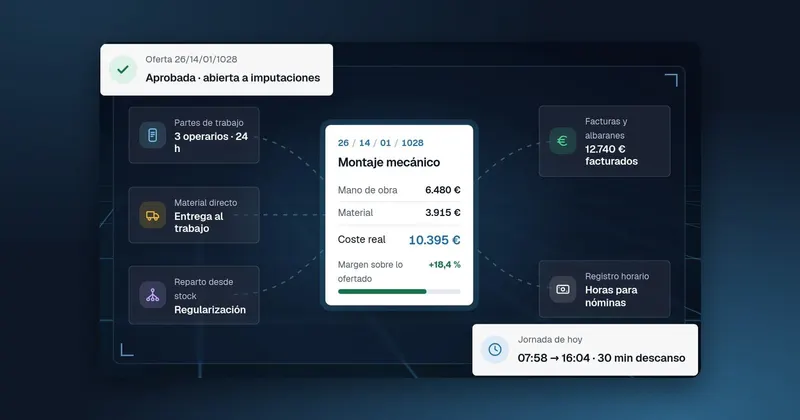
In GControl, from Infonet, the same fields as in your template are in the Windows program and in the Android app. The technician clocks the start and end of the working day and breaks, at the company or at the customer's site, and submits the report: normal, overtime, public holiday, union, night-time and leave hours, travel, allowances and mileage, and the job's documents. In the office it can be seen in real time and the day's signature sheet can be produced.
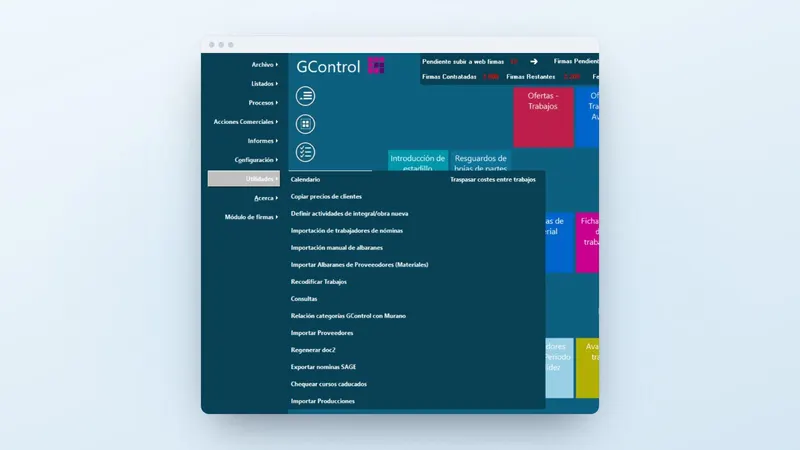
The job code stops being a field the technician writes by hand: jobs are coded by year, customer, type of activity and number, and the report is allocated to one that already exists. From the main screen you go into quotes, jobs and reports.
From there, the report serves a dual purpose: each worker's time record, with the hours ready for payroll, and the breakdown of those hours by job and activity for cost analysis. Each hour is valued using the rate table by professional category (if you want to fine-tune that rate, see real hourly cost by professional category). Materials issued and suppliers' delivery notes are allocated to the same job, and what has been invoiced is imported from Sage to compare against the cost. Everything comes out in Excel pivot tables, from quotes through to costs, income and profit. You'll find more detail on the pages for work reports and cost control.
What to do now with your reports
- Take the report your technicians use today and compare it with the table of fields above: note what is missing.
- Make the job code mandatory and split hours by type, even if you stay with Word.
- Count how much time someone in your office spends copying reports each week: that figure will tell you whether it's worth making the move.
If that time already weighs on you, request a GControl demo with your own jobs or call +34 959 54 07 12 and we'll show you how the report gets from the phone to the cost of each job.